Free AI Image Editor with Prompt
Photo Editing Prompt Examples
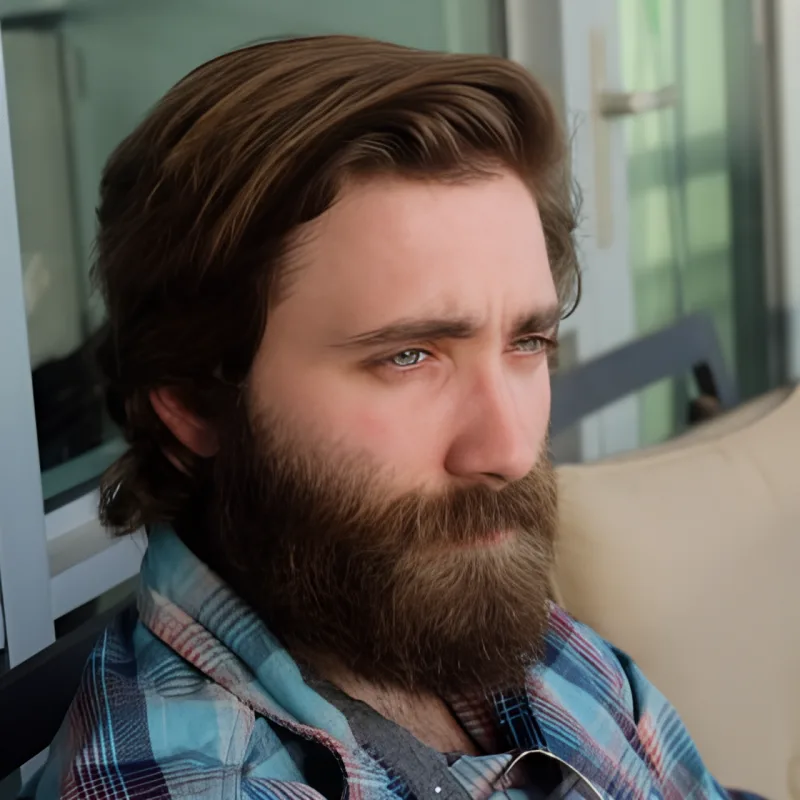
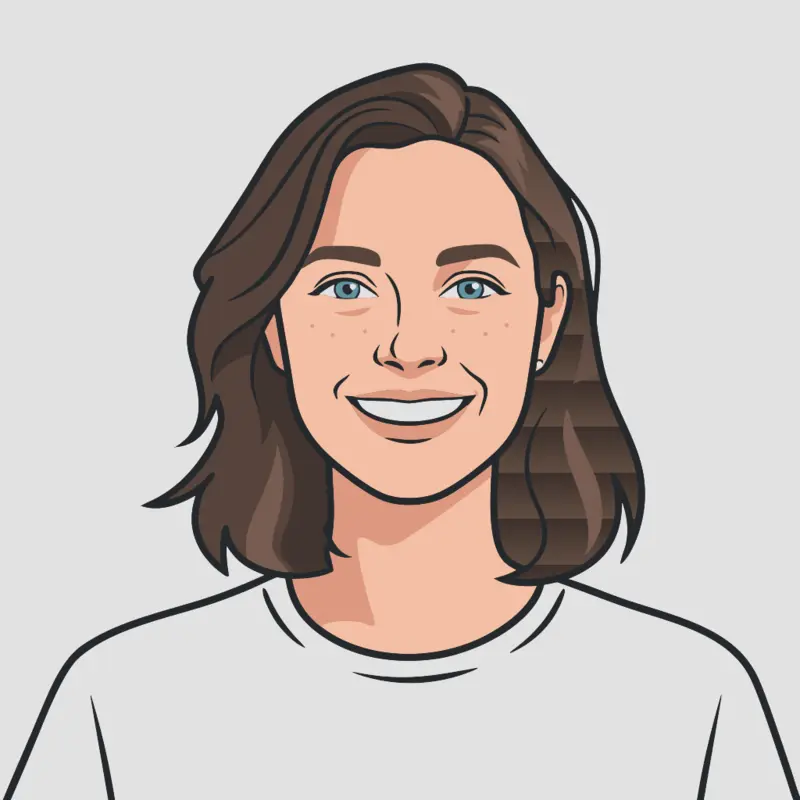
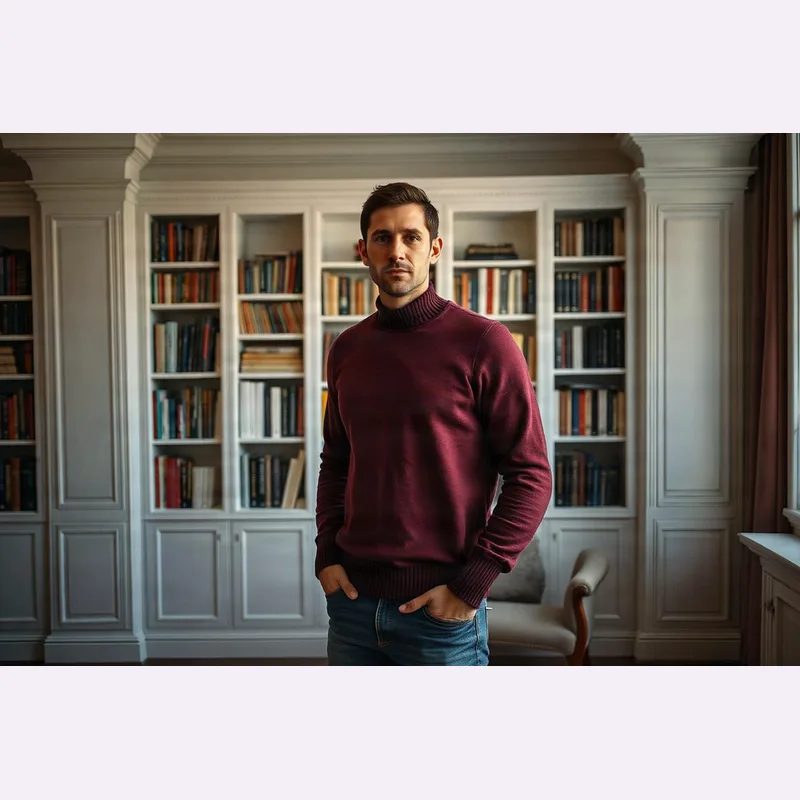
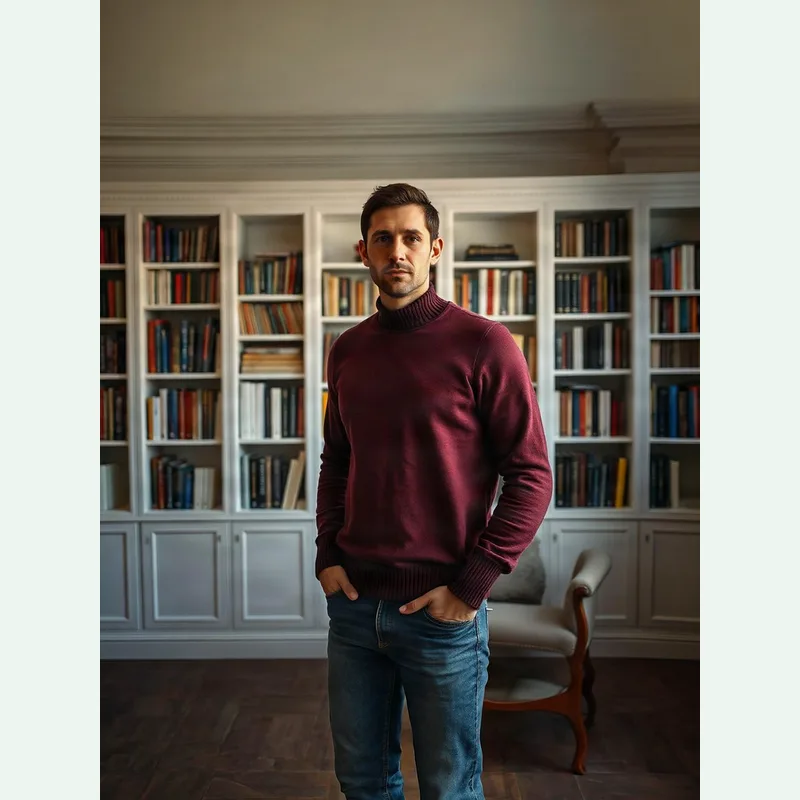
Compare the examples, then try a suggested prompt on your own photo.
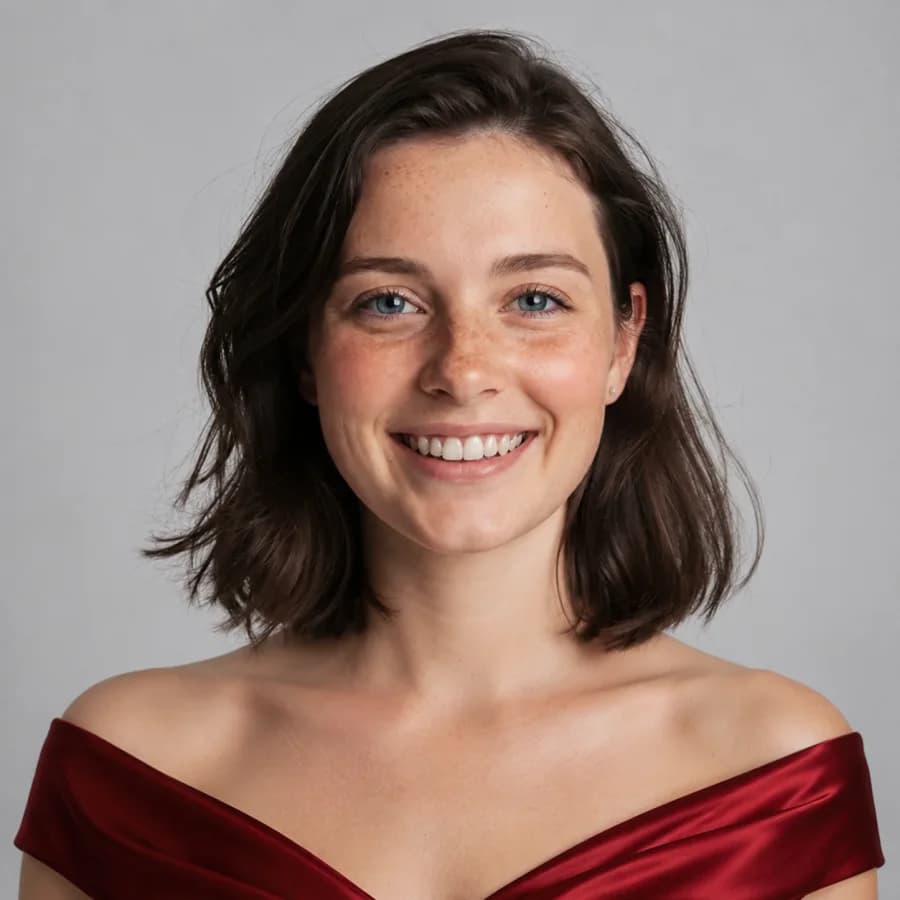
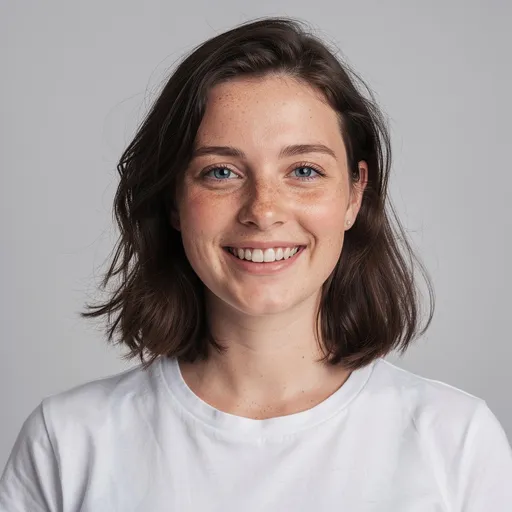
Before
After
Tap to compare
Change an outfit
Suggested prompt
Change the outfit to an elegant red dress. Keep the same person, face, pose, and background.
Try this edit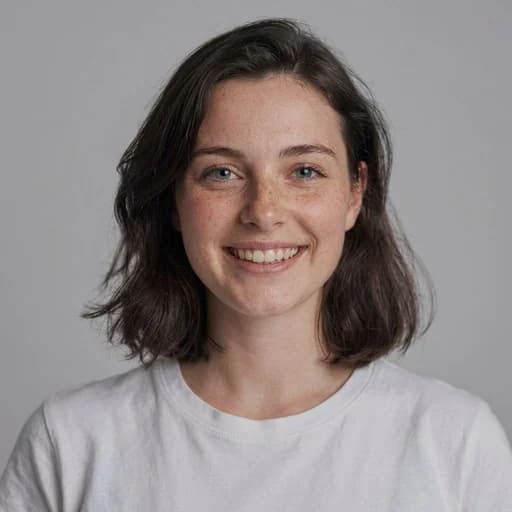
Before
After
Tap to compare
Retouch a portrait
Suggested prompt
Retouch the portrait naturally. Improve sharpness and skin detail while keeping the same face.
Try this edit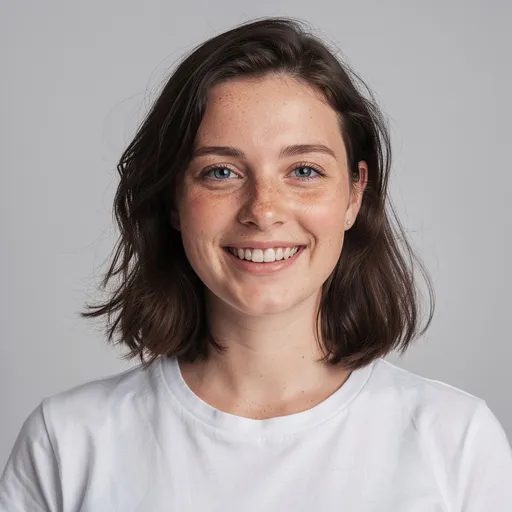
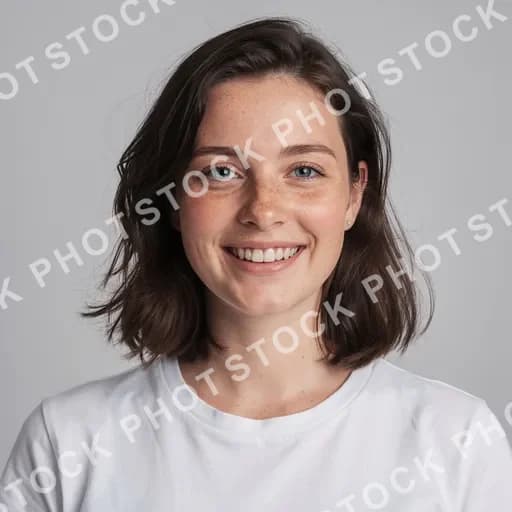
Before
After
Tap to compare
Remove text
Suggested prompt
Remove the overlaid text. Rebuild the background naturally.
Try this editName what to change and what to keep. Results can vary.
Editing prompts to try
New to prompt-based editing? Upload a photo, then describe the change in plain English. Here are prompts that work well — copy one to get started.
Outfits & style
Restyle what someone is wearing without a reshoot.
“Change the outfit to a tailored business suit”
“Put a leather jacket on the person”
“Make the dress red instead of blue”
“Dress them in a cozy winter sweater”
Portraits & retouch
Natural-looking fixes that keep the likeness.
“Smooth the skin and remove blemishes, keep it natural”
“Open the eyes and brighten the smile”
“Remove the glasses”
“Fix the lighting so the face is evenly lit”
Background & scene
Swap or clean up everything behind the subject.
“Change the background to a plain white studio”
“Put them on a sunny beach at golden hour”
“Blur the background like a portrait lens”
“Remove the clutter behind them”
Cleanup & objects
Add, remove, or replace things in the frame.
“Remove the person in the background”
“Delete the text and logo from the photo”
“Add a small dog sitting next to them”
“Erase the power lines from the sky”
AI Prompt Editor FAQs
Upload a photo and describe the change you want. You can ask for a different outfit, background, hairstyle or expression, or try removing unwanted objects and text.
Review the generated result before downloading.
Start with one clear change, then describe the result and anything you want to keep. For example: “Replace the background with a sunny beach. Keep the person, outfit and pose.”
If the result misses a detail, refine the instruction and try again. AI can also alter details you wanted to keep, so compare the result with your original.
Yes. Sign up to get free credits and start editing right away.
AI image processing has real costs, so we include a limited number of free credits so you can try the editor. When you need more, you can subscribe for monthly or annual credits, or buy credit packs anytime. See pricing for details.
Yes. Each image you edit uses 1 credit.
If you blend multiple images (up to 4), it costs 1 credit per image.
Free and paid credits work the same.
If an edit fails due to a technical error or is blocked by content safety filters, credits are not deducted.
See pricing for details.
PicTools.AI supports all major image formats, including JPG, PNG, WebP, BMP, GIF, and TIFF.
Upload a supported photo file to start. If a file is rejected, try JPG or PNG.
Your images are processed to provide the service, including by our service providers. We do not sell them or use them to train AI models.
See our Privacy Policy for storage, retention and deletion details.
Yes, you can use the images you edit with PicTools.AI for commercial purposes.
Make sure your usage complies with our Terms of Use and respects third-party rights, including trademarks and the likeness of real people.
PicTools.AI is not responsible for how users choose to use their edited images.
No. PicTools.AI is an independent tool that lets you edit images with AI by describing what you want.
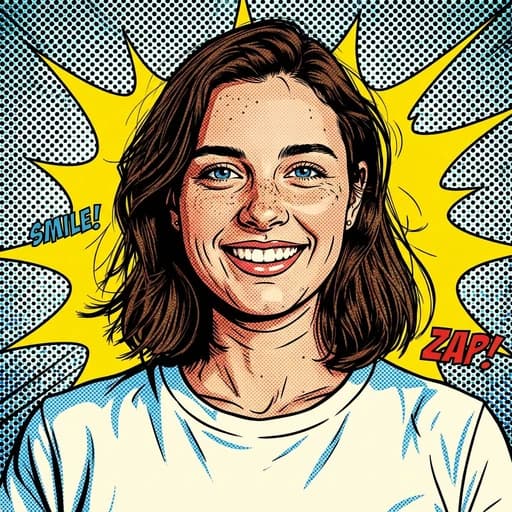
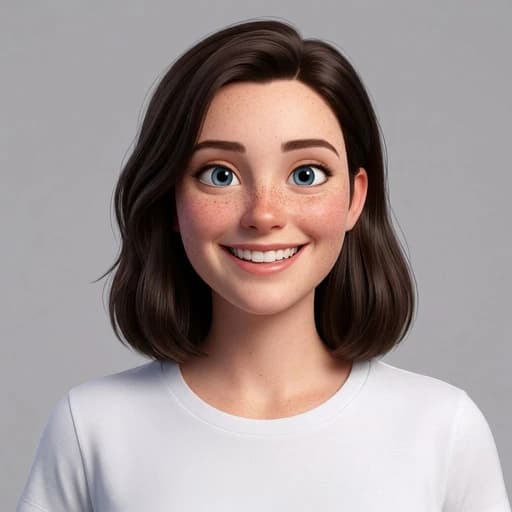
Some filters are inspired by well-known visual styles, but PicTools.AI isn’t affiliated with, sponsored by, or endorsed by any company, brand, or animation studio.
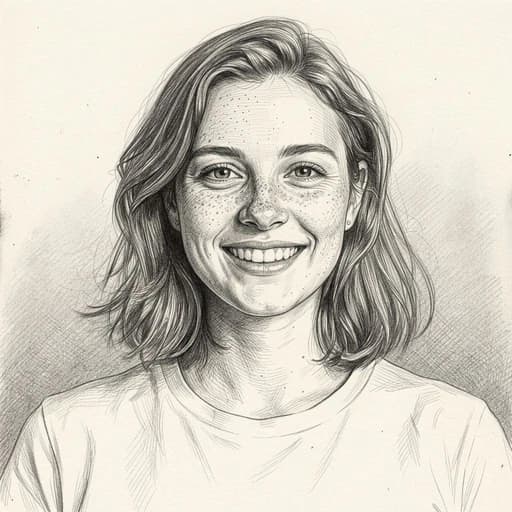
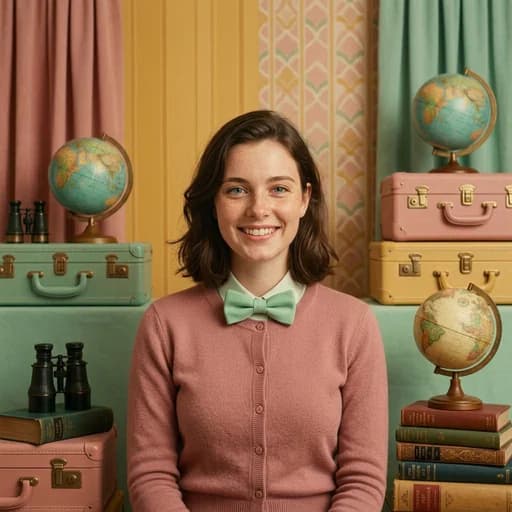
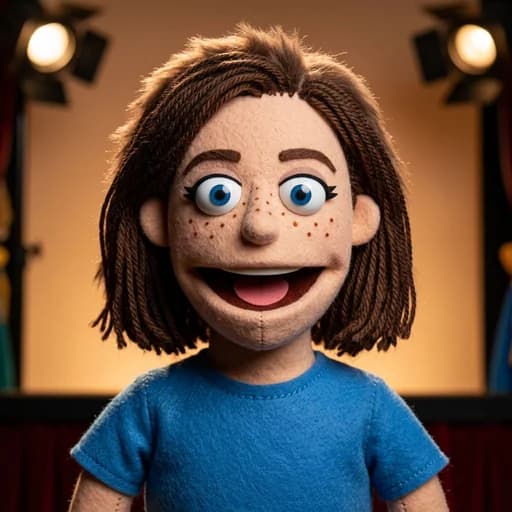
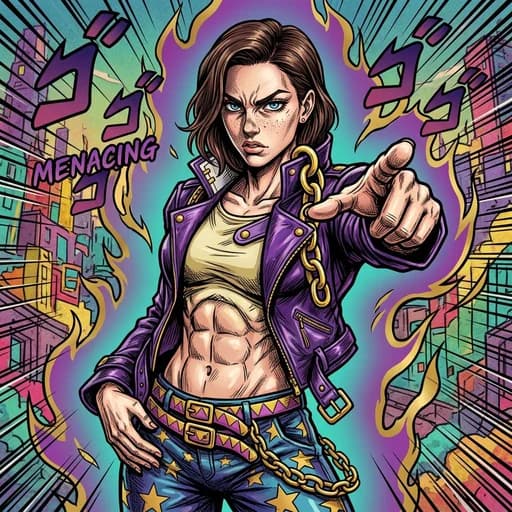
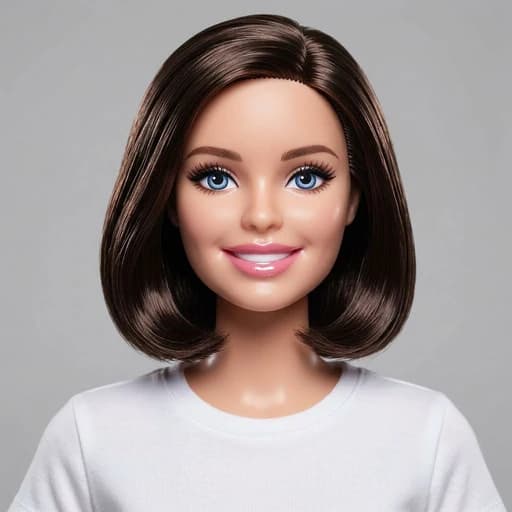
Popular AI Photo Filters
See all 130+ filters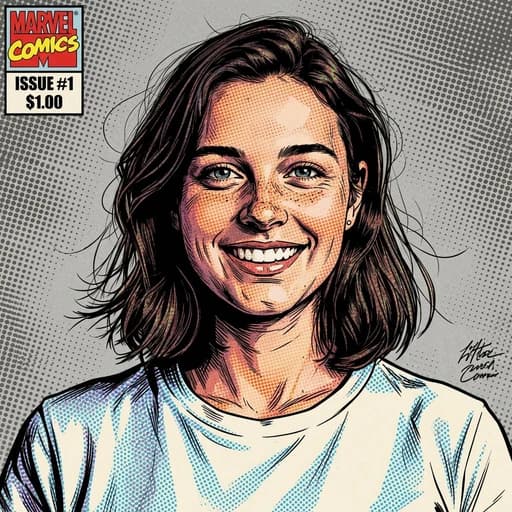
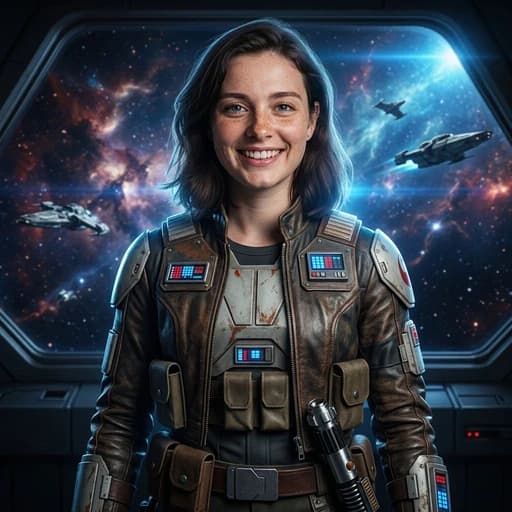
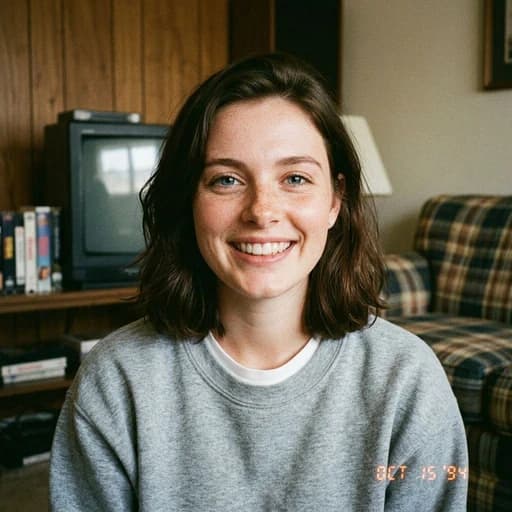
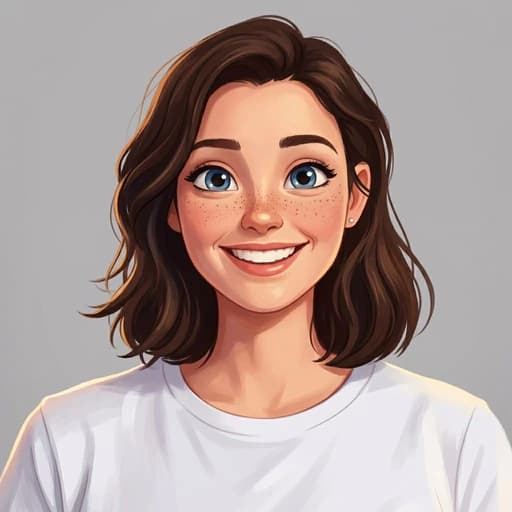
More AI Photo Tools
Beyond prompt edits and filters — reshape, expand, upscale and vectorize any photo.