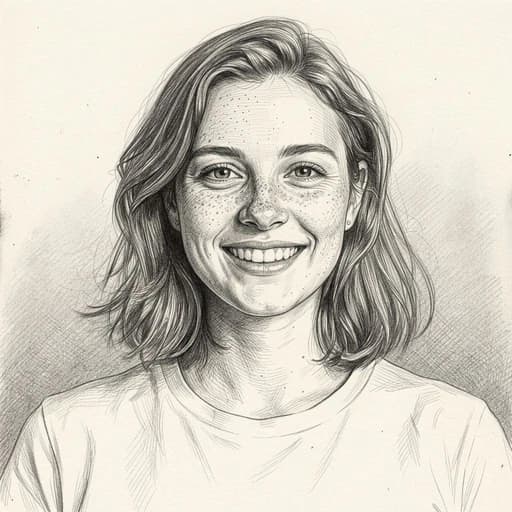
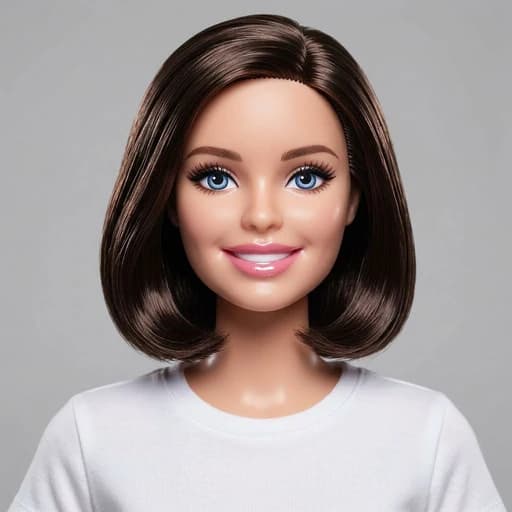
Fat Filter AI
Before & After: Fat Filter
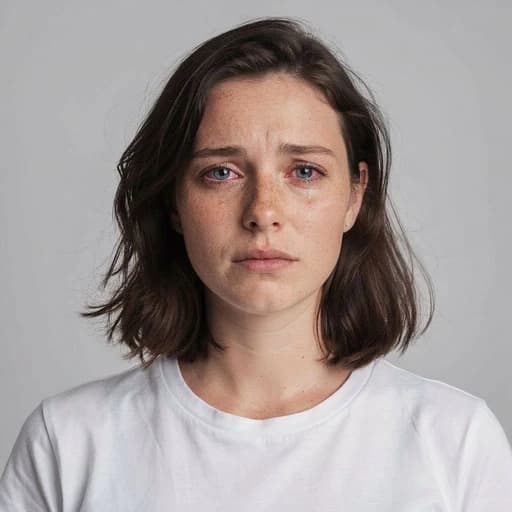
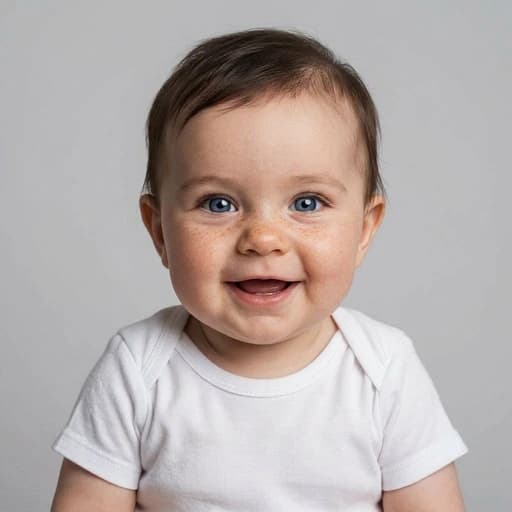
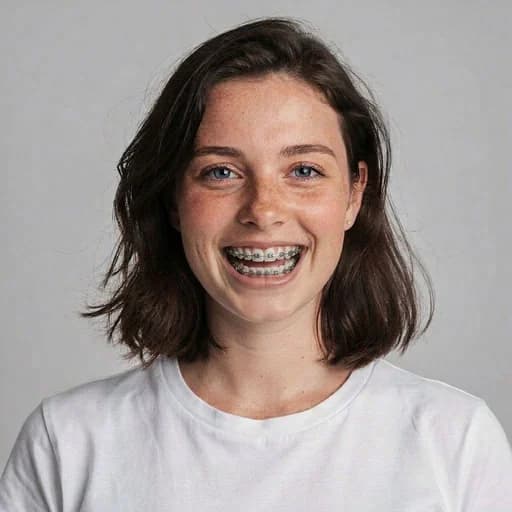
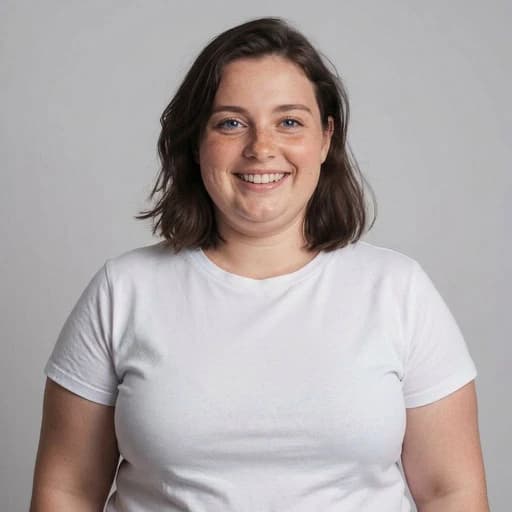
Example: left, original portrait; right, heavier-looking variation. Drag to compare.
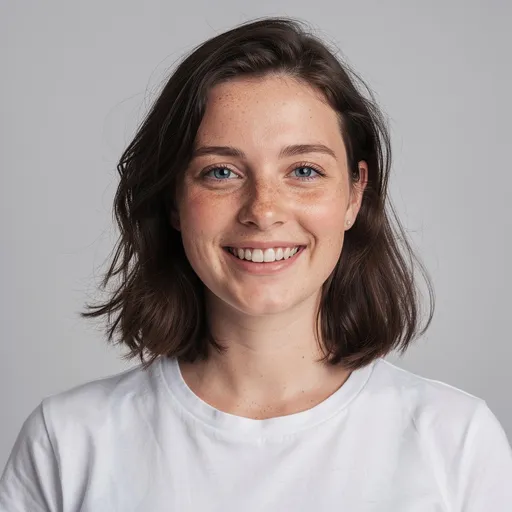
Before
After
Tap to compare
What this filter changes
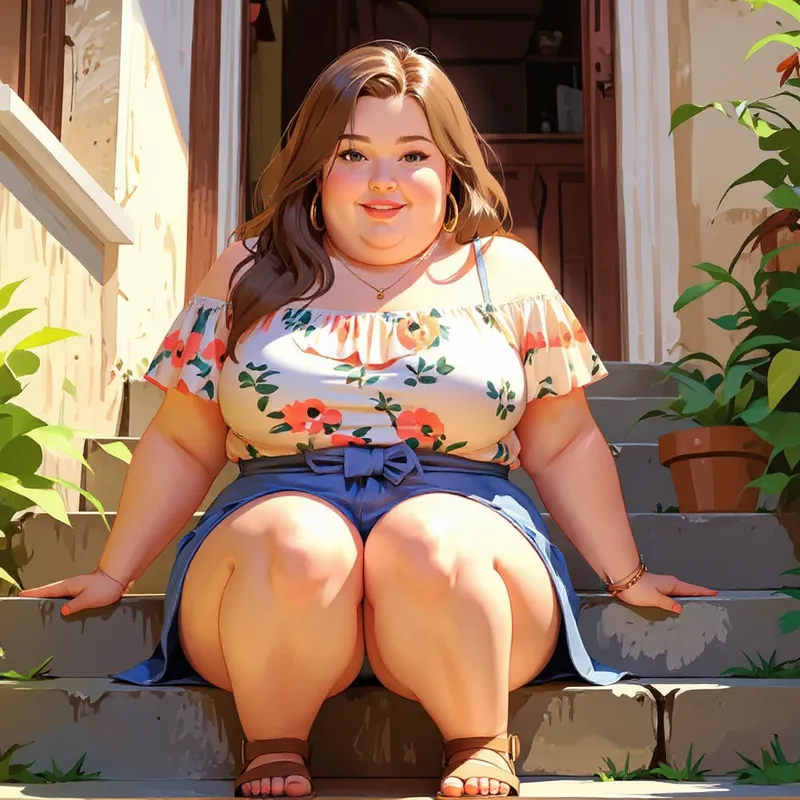
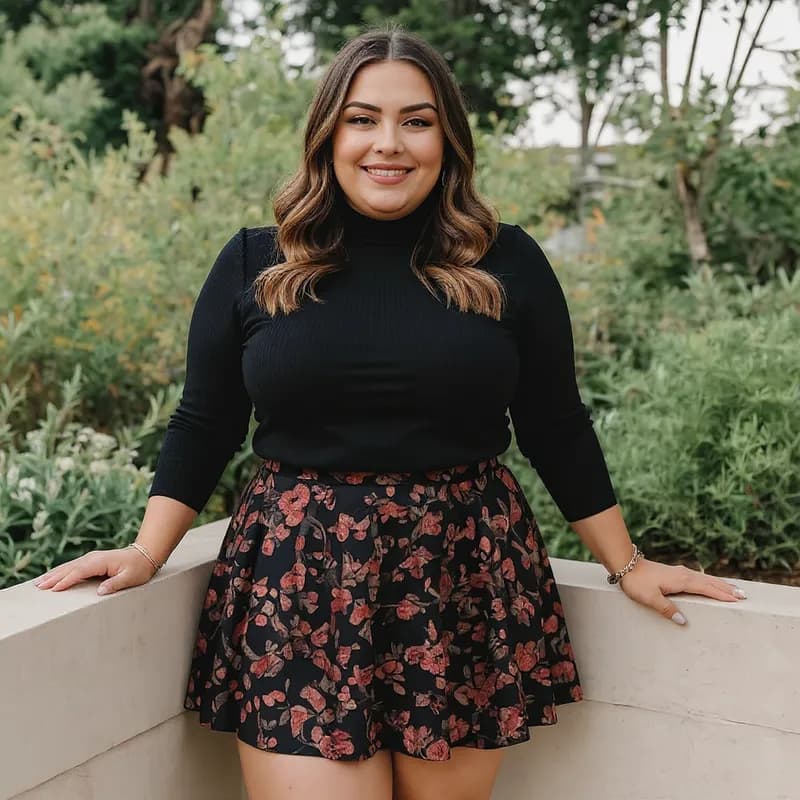
Create a heavier-looking face and body, with fuller cheeks, jaw and neck. This fat filter is a creative photo effect, not a prediction of weight gain.
Try it for: Group-chat portraits. Only share playful edits with the person’s consent.
How to use this filter
1. Upload a front-facing photo
Show the full face and neck.
2. Apply the fat filter
Generate a heavier-looking face and body in the editor.
3. Review and download
Check the face, body outline and background, then download.
Tips & limitations
- Include the body areas you want to change; a tight crop leaves them out.
- Other details can change too, including clothing and background.
Last reviewed by PicTools.AI editorial.
Fat Filter FAQs
Upload a clear portrait to PicTools.AI. The AI generates a heavier-looking variation of the visible face and body, which you can compare with the original.
Yes, you can try it for free. Sign up to get welcome credits and start transforming photos instantly — no credit card required.
No. It creates a novelty image and cannot predict body composition, where a person would gain weight or how a real physical change would look.
The intended effect focuses on visible face and body shape, but generative edits can also change clothing, lighting, background or facial details.
Use a clear, front-facing image that includes the head, neck and the part of the body you expect the filter to reinterpret.
See More Fat Filter Examples ▾
Fat Filter Examples
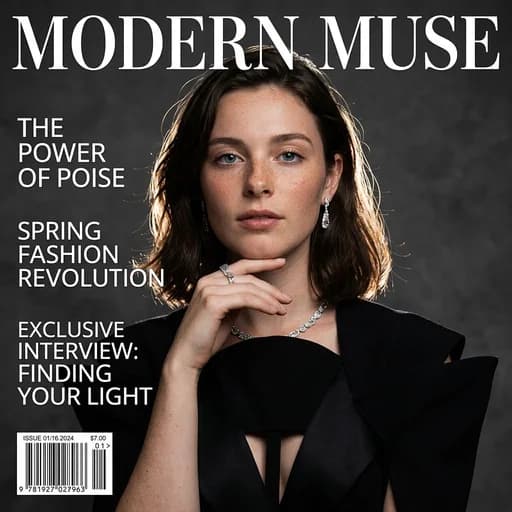
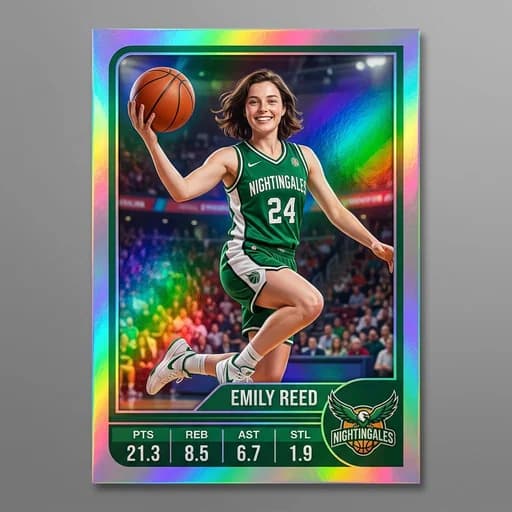
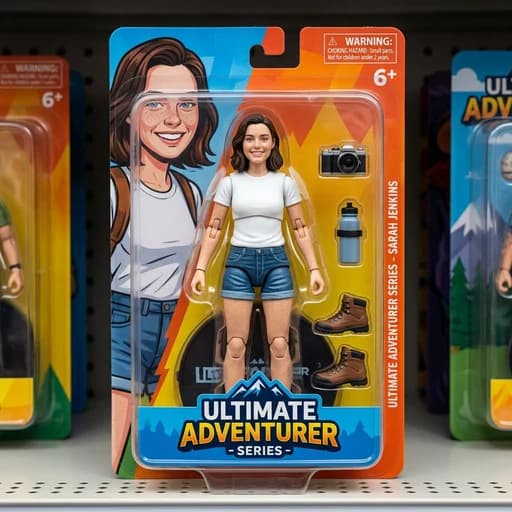
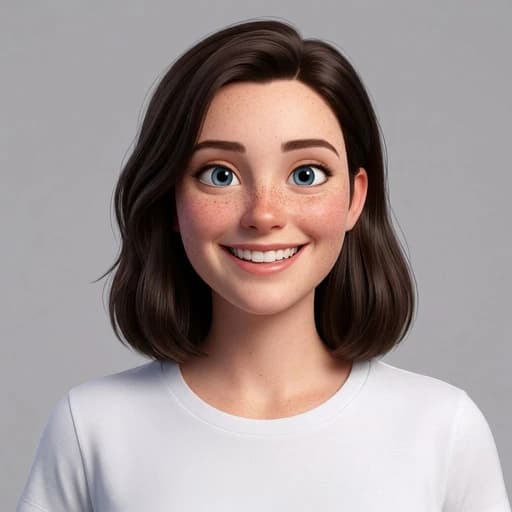
Photos with AI weight gain applied using the Fat Filter