Anime Filter Online
Before & After: Anime Filter
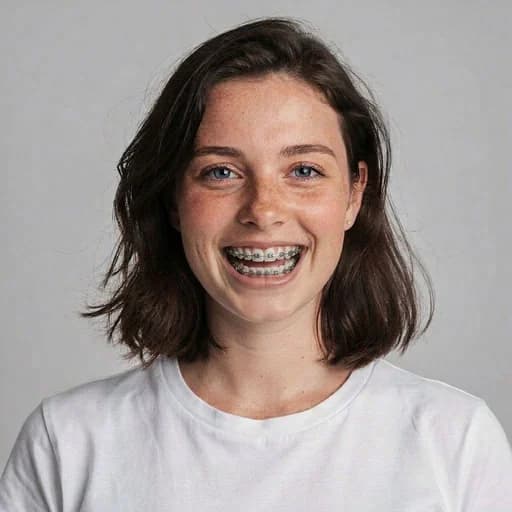
Example: left, original portrait; right, anime illustration version. Drag to compare.


Before
After
Tap to compare
What this filter changes
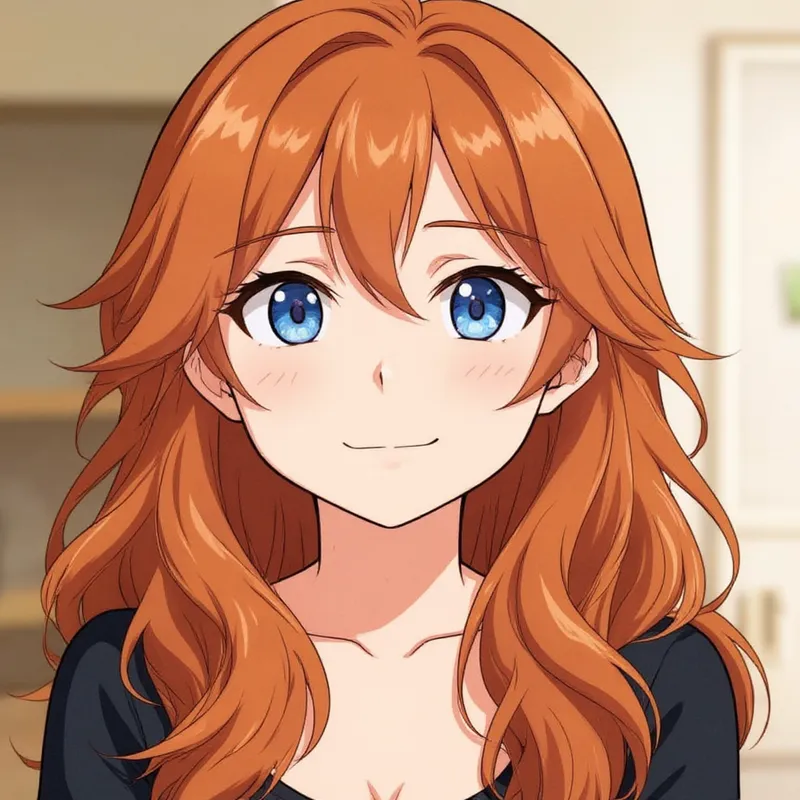
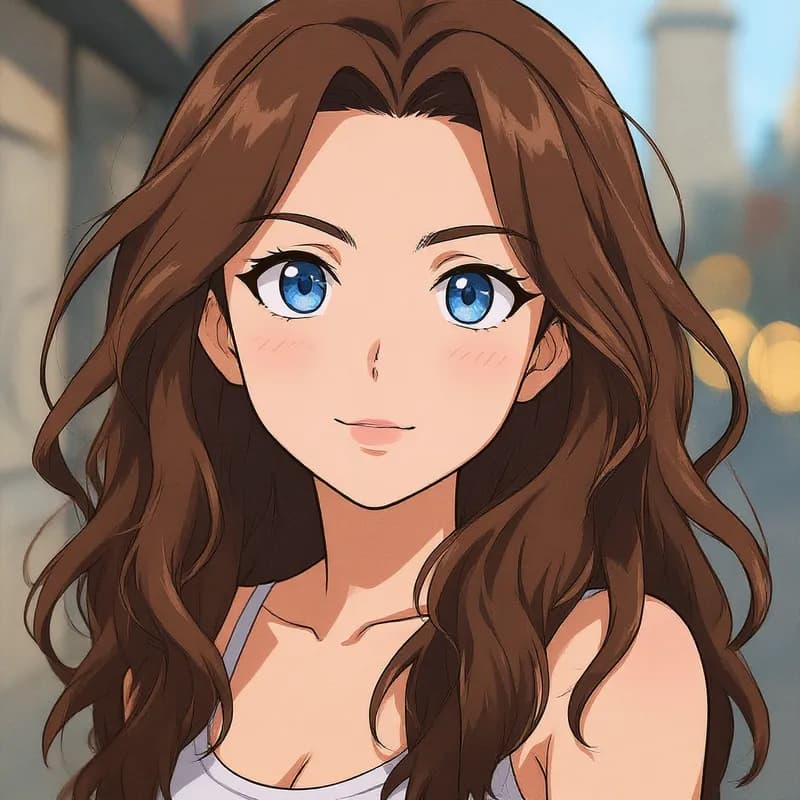
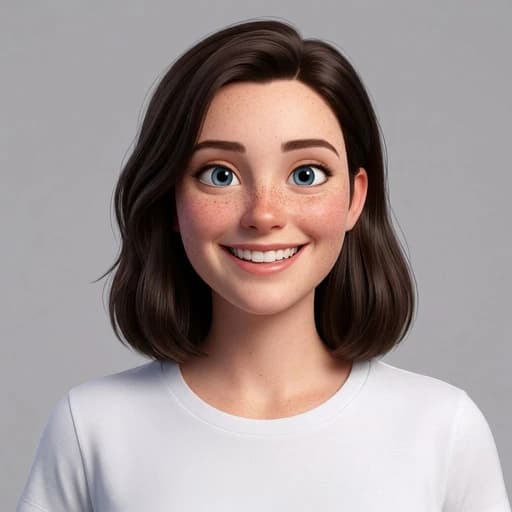
Turn your photo into an anime-style illustration. In the example above, the portrait is redrawn with clean outlines, cel shading and large, bright eyes, while the hair, freckles and white T-shirt carry over.
Try it for: Anime-style profile pictures. Use the illustration as an avatar for social or gaming profiles.
How to use this filter
1. Upload a portrait
A head-and-shoulders portrait, like the example, where the freckles, hair and T-shirt carried over.
2. Generate the anime version
The filter opens already selected in the editor; generate to get the illustration.
3. Check the line work
Look at the eyes, hair and outlines against your original photo.
Tips & limitations
- In this example the eyes are drawn larger and the shading is simplified, so the likeness follows the anime style rather than the photo.
Last reviewed by PicTools.AI editorial.
Anime Filter FAQs
Upload a portrait to PicTools.AI and apply the Anime filter. In the example above, the photo becomes an anime illustration with clean outlines, cel shading and large eyes.
You can try PicTools.AI with a limited free allowance. More edits require a credit pack or subscription.
In the example above, the hair, freckles, smile and T-shirt carry over into the illustration, drawn with larger eyes and simpler shading. Compare the result with your photo.
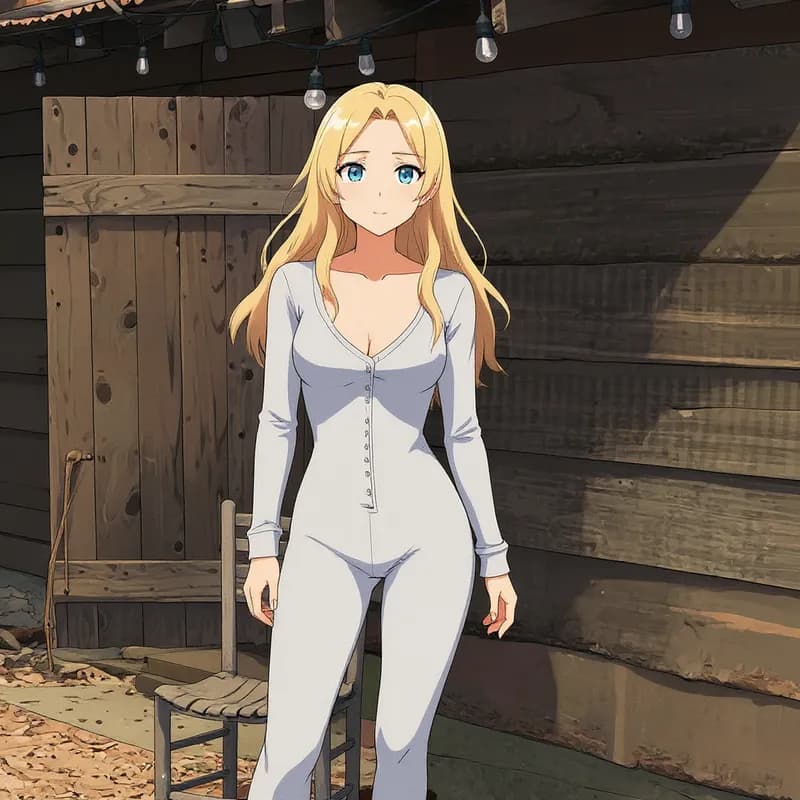
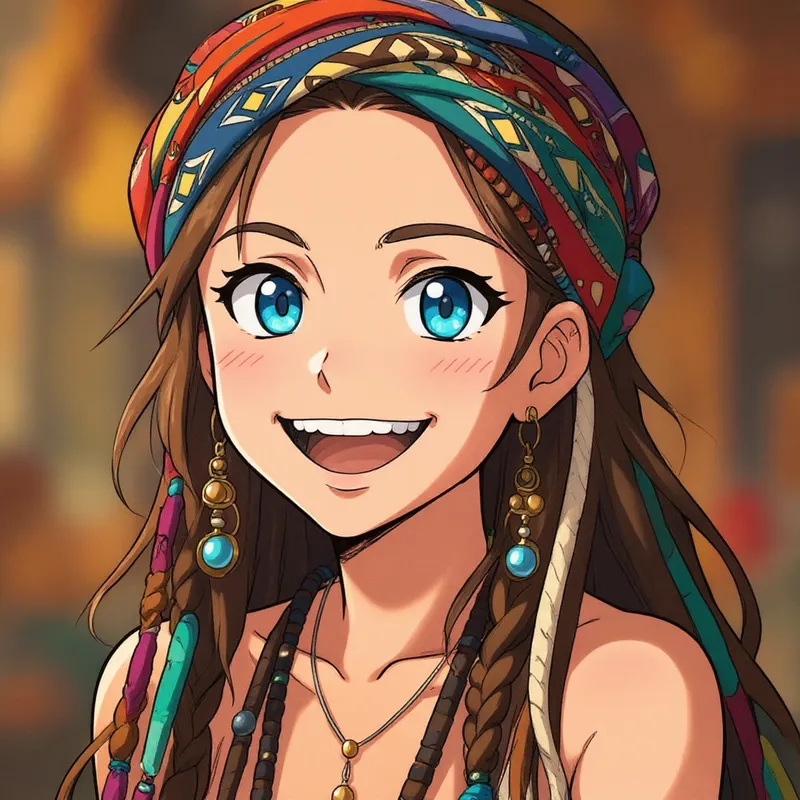
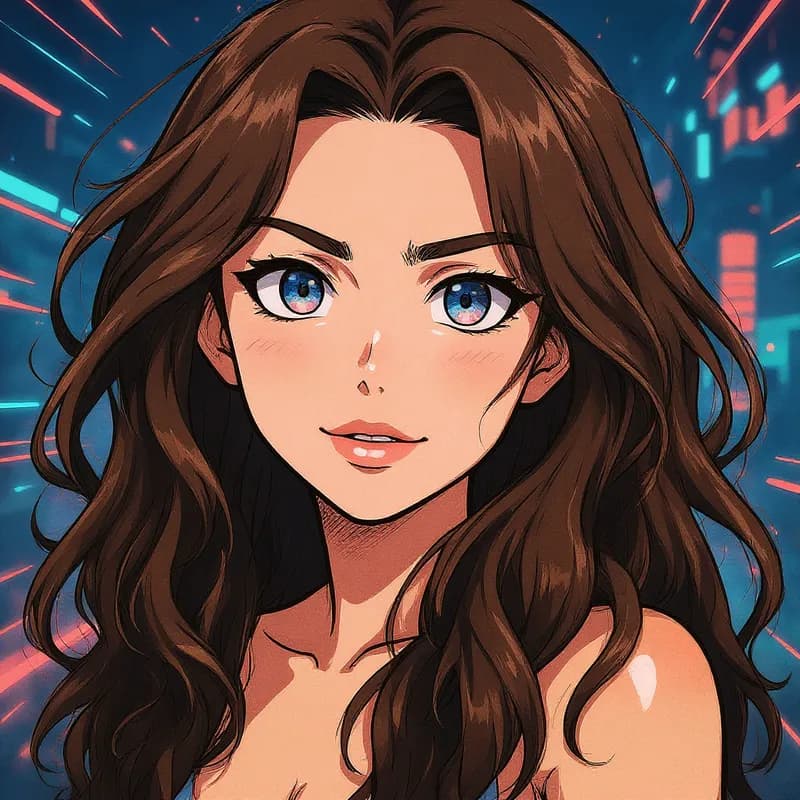
The Anime example is a clean illustration on a plain background; the 90s Anime example shows bold outlines, retro colors and a painted city park backdrop.
It turns a still photo into an anime illustration. Upload a photo, or take one with your camera in the app, and you get the illustrated version.
See More Anime Filter Examples ▾
Anime Filter Examples
Photos turned into anime illustrations