Remove Glasses from Photo with AI
Before & After: Glasses Remover
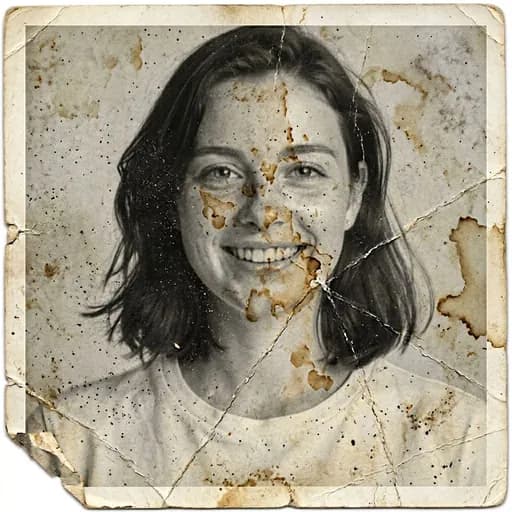
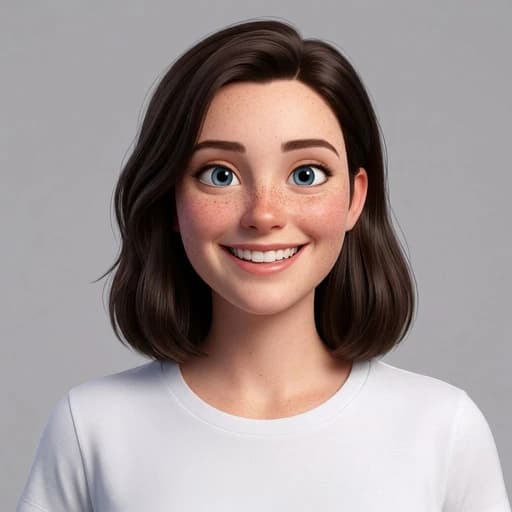
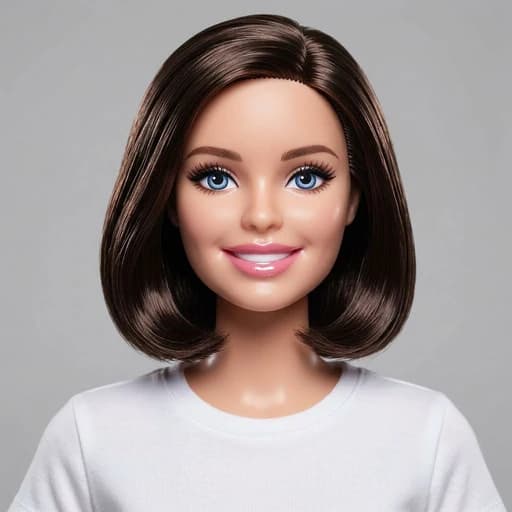
Example: left, glasses; right, AI-reconstructed eyes and skin. Drag to compare.


Before
After
Tap to compare
What this filter changes
Remove glasses with AI-generated eyes and skin replacing the covered areas. Hidden pixels cannot be recovered, so the result may differ from your actual appearance.
How to use this filter
1. Upload a portrait
Choose a portrait showing glasses.
2. Remove the glasses
Remove frames and lenses in the editor.
3. Review and download
Check the reconstructed eyes and skin, then download.
Tips & limitations
- Tinted lenses, thick frames and reflections hide more eye detail.
- Use an original glasses-free photo when eye shape or colour must be exact.
- To keep the frames and remove reflections, use glare removal instead.
Last reviewed by PicTools.AI editorial.
Glasses Removal FAQs
Upload a portrait and the AI removes the frames and lenses, then generates a replacement for the covered eye and skin area.
Yes, you can try it for free. Sign up to get welcome credits and start editing instantly — no credit card required.
No. Pixels hidden by frames or lenses are not present in the photo. The AI generates that area, so eye shape, colour, brows and nearby skin may differ.
It can attempt to remove sunglasses, but dark or reflective lenses leave less visible eye detail for the model to reference and may produce larger differences.
It can remove common prescription, reading and fashion frames. Clear lenses and a visible, front-facing eye area provide more source detail than thick frames or strong reflections.