Restore Old Photos with AI
Before & After: Photo Restoration
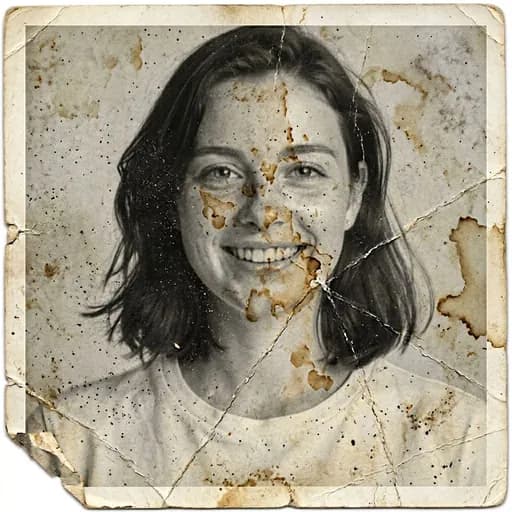
Example: left, stained and cracked black-and-white print; right, the restored result. Drag to compare.

Before
After
Tap to compare
What this filter changes
Clean up an old, damaged print with AI. In the example above, stains, cracks, a torn corner and the white border are removed, and the black-and-white photo comes back as a color portrait. To add color to an undamaged black-and-white photo, the Colorize filter is the closer fit.
Try it for: Family albums and memorial photos. Clean up a scanned print before sharing it with relatives.
How to use this filter
1. Scan or photograph the print
Keep the whole picture in frame, flat and evenly lit.
2. Apply Restore Old Photo
In the example, visible stains and cracks are removed, along with the white border.
3. Check the added colors
Skin, eye and clothing colors are AI choices; compare them with what you know of the person.
Tips & limitations
- The black-and-white example came back in color; those colors are an interpretation, not recovered from the print.
- In the example, the cracks across the face are gone and the face stays recognizable.
Last reviewed by PicTools.AI editorial.
Old Photo Restoration FAQs
Scan or photograph the print, upload it to PicTools.AI and apply the Restore Old Photo filter. In the example above, the stains, cracks, torn corner and white border are removed.
You can try PicTools.AI with a limited free allowance. More edits require a credit pack or subscription.
In the example above, the black-and-white print came back in color. Those colors, including eyes and clothing, are the AI’s interpretation, not information recovered from the original.
In the example above, the face, smile, freckles and hair stay recognizable. Compare the result with your scan.
A scan or photo of the whole print, like the example above.