Tan AI Filter
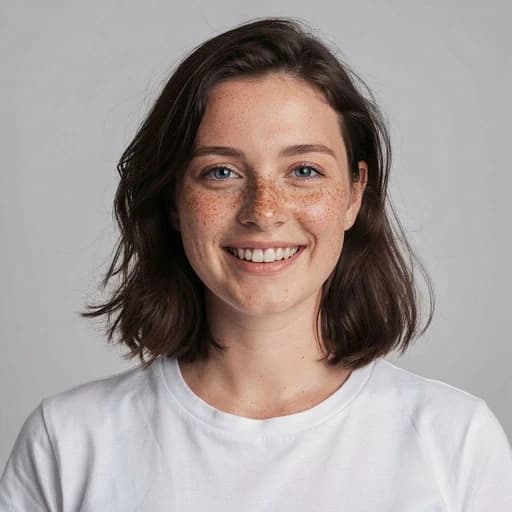
Before & After: Tan Filter
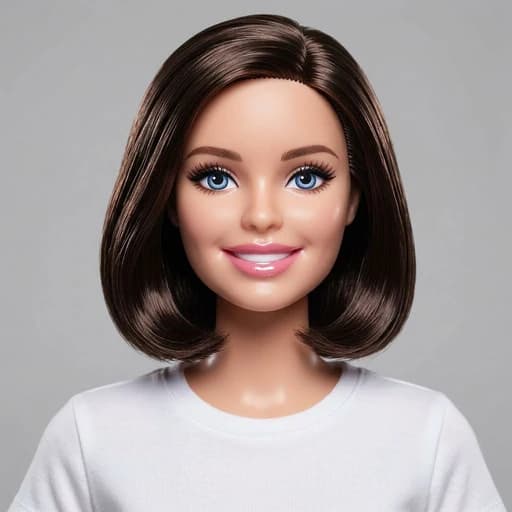
Example: left, original portrait; right, warmer tanned-looking edit. Drag to compare.


Before
After
Tap to compare
What this filter changes
Apply one preset tan effect to your portrait; there is no shade or intensity control. This is a cosmetic photo effect, not a prediction of sun exposure, self-tanner or spray-tan results.
Try it for: Create a sun-kissed photo effect. Try a warmer look for a portrait, holiday photo or social post.
How to use this filter
1. Upload a clear photo
Use even lighting and keep the skin areas you want included visible in the frame.
2. Apply the filter
Generate a warmer, tan-effect version of the photo in the editor.
3. Review and download
Check the face, visible skin and overall colour before saving the image.
Tips & limitations
- The effect can also shift the lighting, clothing or background colour; compare the full result with the original.
Last reviewed by PicTools.AI editorial.
Tan AI Filter FAQs
Upload a clear portrait, apply the tan filter, then compare the generated result with the original before downloading.
Yes, you can try it for free. Sign up to get welcome credits. No credit card required.
It generates a warmer, tanned-looking version of the visible skin. Because this is a generative edit, the overall colour, lighting and nearby details can also change.
No. This preset creates one AI interpretation and does not include a shade picker or intensity slider.
No. The result is a cosmetic photo effect, not a prediction of sun exposure, self-tanner or spray-tan colour.
Use an evenly lit portrait with the face and any other skin areas you want included clearly visible. Strong colour casts and deep shadows can affect the result.