Gray Hair AI Filter
Before & After: Gray Hair Filter
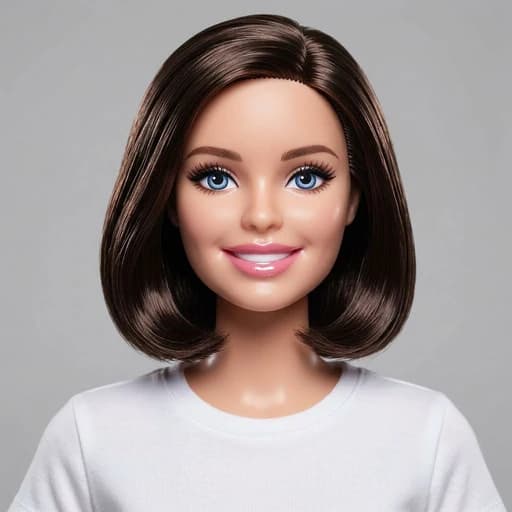
Example: left, original brown hair; right, AI-generated silver-gray hair. Drag to compare.


Before
After
Tap to compare
What this filter changes
See how gray or silver hair could look in your own portrait. The shade varies with your photo; this is a style preview, not a prediction of how your hair will turn gray.
Try it for: Explore a silver-haired look. Use your portrait as a starting point for a conversation with your colorist, not an exact dye-color match.
How to use this filter
1. Upload a portrait
Include the full hairline and ends, with the hair clearly visible.
2. Apply the gray hair filter
Generate a gray-haired version of your photo in the editor.
3. Review and download
Check the shade, hairline and face before saving your preview.
Tips & limitations
- Gray tones vary with the photo; hair texture, facial details and background can also change.
Last reviewed by PicTools.AI editorial.
Gray Hair AI Filter FAQs
Upload a portrait with your hair visible and apply the gray hair filter. Review the generated color and hairline before downloading your edited photo.
Yes, you can try it for free. Sign up to get welcome credits. No credit card required.
Yes. The filter generates a gray or silver-haired version of your portrait; the shade varies with your photo. It is a visual style preview, not a prediction of natural graying or an exact salon color match.
No. This grey hair filter adds gray tones to preview a silver-haired look. It does not cover gray hair or recolor it back to brown or black.
The intended change is hair color, not facial aging or a new haircut. AI generation can still alter hair texture, facial details or the background, so inspect the result before using it.
Use a well-lit portrait that includes the hairline and ends. Avoid hats, hands covering the hair or a crop that cuts off the areas you want to recolor.